What exists now
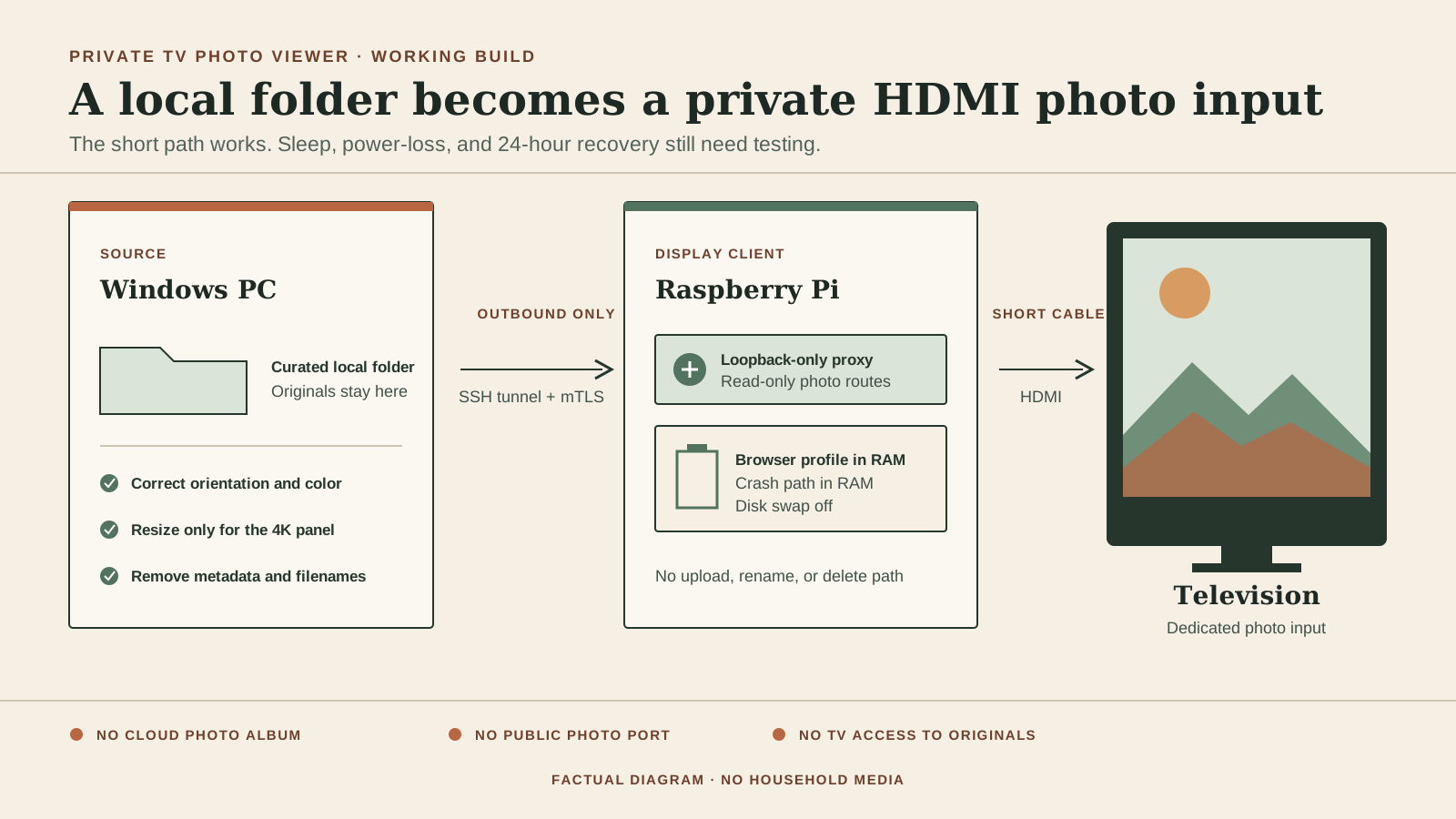
I can put an image into one folder on the Windows PC and have it enter a fullscreen slideshow on the Raspberry Pi after the next refresh. Portrait images stay uncropped over a dimmed backdrop. The Pi is configured to keep running on its own HDMI input without claiming the active input at boot. Visible manual source switching and return to the other input remain unconfirmed.
The working boundary is narrow:
- The Windows PC keeps the original files.
- The Pi receives display-sized JPEG derivatives with orientation corrected and metadata removed.
- The Windows photo service and Pi viewer listen only on their own loopback interfaces.
- Windows opens the authenticated tunnel outward, so there is no inbound Windows photo port.
- The Pi's browser profile, Chromium config and crash path, and temporary directory resolve to RAM-backed storage, and disk-backed swap is off.
This is a dedicated photo input, not a native television screensaver. I have checked the complete local path and slideshow transitions, but I have not lived with the recovery behavior long enough to call it dependable.
Why I used a Raspberry Pi
I first tried to avoid another device. Wireless display discovery was unreliable on the available Windows adapter. Sending still images directly to the television over DLNA worked, but the television kept control of the playback overlay and the result did not feel like a quiet slideshow.
Samsung documents an API for enabling or disabling its own screensaver and says hidden TV applications pause JavaScript. From those interfaces, I infer that there is no supported way for this project to register a private folder as the television's system screensaver. The Pi is configured not to claim the active HDMI input at boot; it is selected like another HDMI source. See Samsung's screensaver documentation and application lifecycle documentation.
Raspberry Pi's own kiosk guide uses Chromium and Labwc, which matches the display pattern here. The security boundary around the page and photo transport is project-specific. Read the Raspberry Pi kiosk guide.
How the local path works
- Windows scans one curated top-level folder for supported images.
- It corrects camera orientation, converts embedded color information to sRGB, resizes only when necessary for the 4K display, and removes EXIF, GPS, ICC, and filename information.
- A loopback-only service returns an opaque manifest and sanitized JPEGs through an outbound SSH reverse tunnel. Mutual TLS still authenticates the Pi inside that tunnel.
- A loopback-only Pi proxy feeds Chromium. For each display cycle, the browser makes one photo request, decodes the resulting blob before display, and revokes its temporary URL when the layer is replaced or photos become unavailable.
- HDMI carries the rendered pixels to the television. The display client has no upload, rename, or delete route back to the originals.
The code is private and has no published license, so this page is an account of the result rather than a step-by-step installation guide.
When this build makes sense
This path is useful when one local folder must remain the source of truth and adding a full photo-management server would be more system than the job needs.
If Immich already manages the library, ImmichFrame or Immich Kiosk is the more direct starting point. Those projects already focus on displaying Immich assets and offer broader slideshow controls. A supported commercial frame or manual transfer is also a valid choice when lower maintenance matters more than keeping this exact folder boundary.
The added hardware here is a Raspberry Pi 4, power supply, microSD card, passive case, and short micro-HDMI cable. I have not published a total cost or setup-time estimate because I did not record them consistently.